How to Install and Log in to the Moodle Mobile App
| Site: | St. Bonaventure University |
| Course: | St. Bonaventure University |
| Book: | How to Install and Log in to the Moodle Mobile App |
| Printed by: | |
| Date: | Saturday, June 13, 2026, 11:29 AM |
Description

1. How to Find the Moodle App in the App Store
1) Open the App Store on your phone and search for: Moodle
2) Install the official Moodle App:
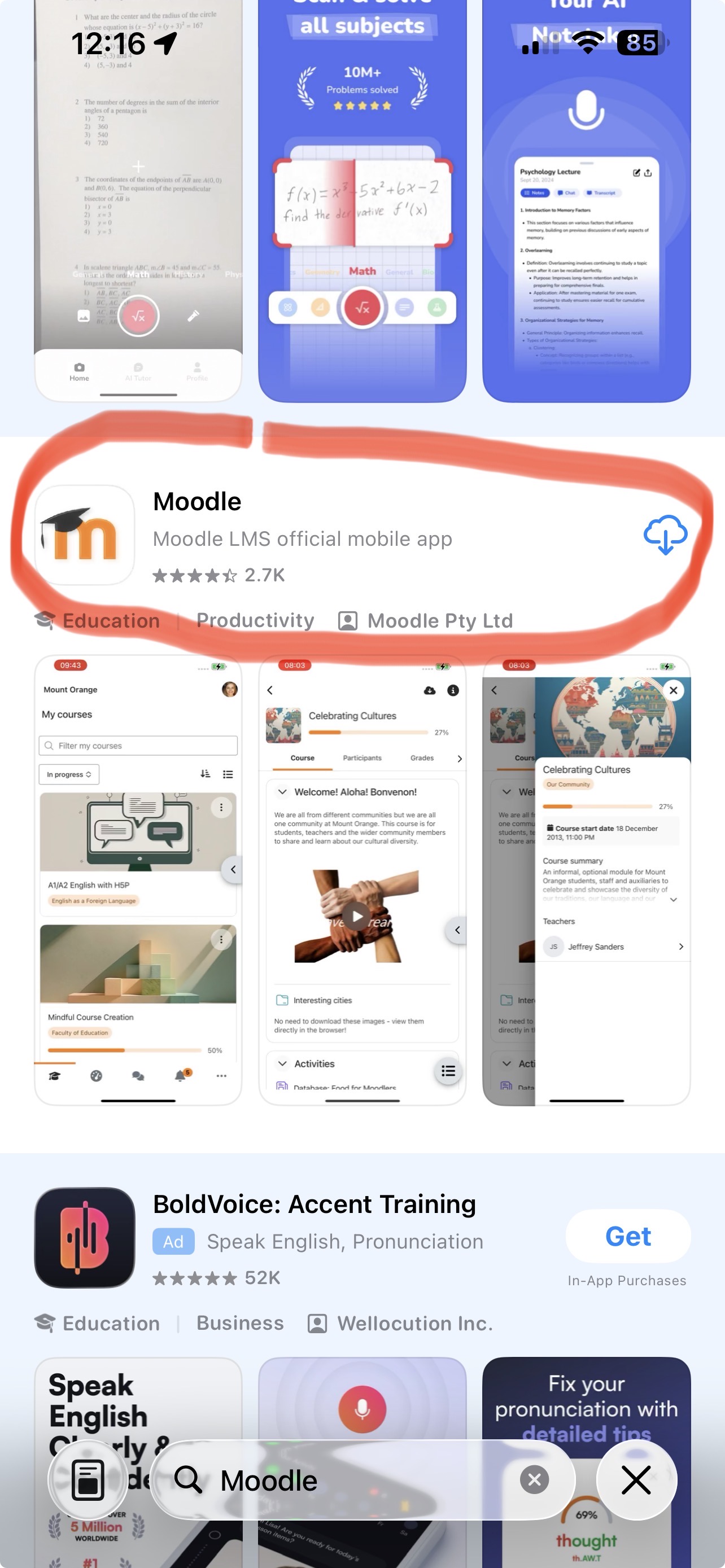
3) Open the Moodle App once installed
2. How to Connect to the SBU Site on the Moodle App
The next step is to connect to the SBU Moodle Site within the Moodle App:
1) Once you open the Moodle App you will be prompted to enter your school's Moodle Site Address:
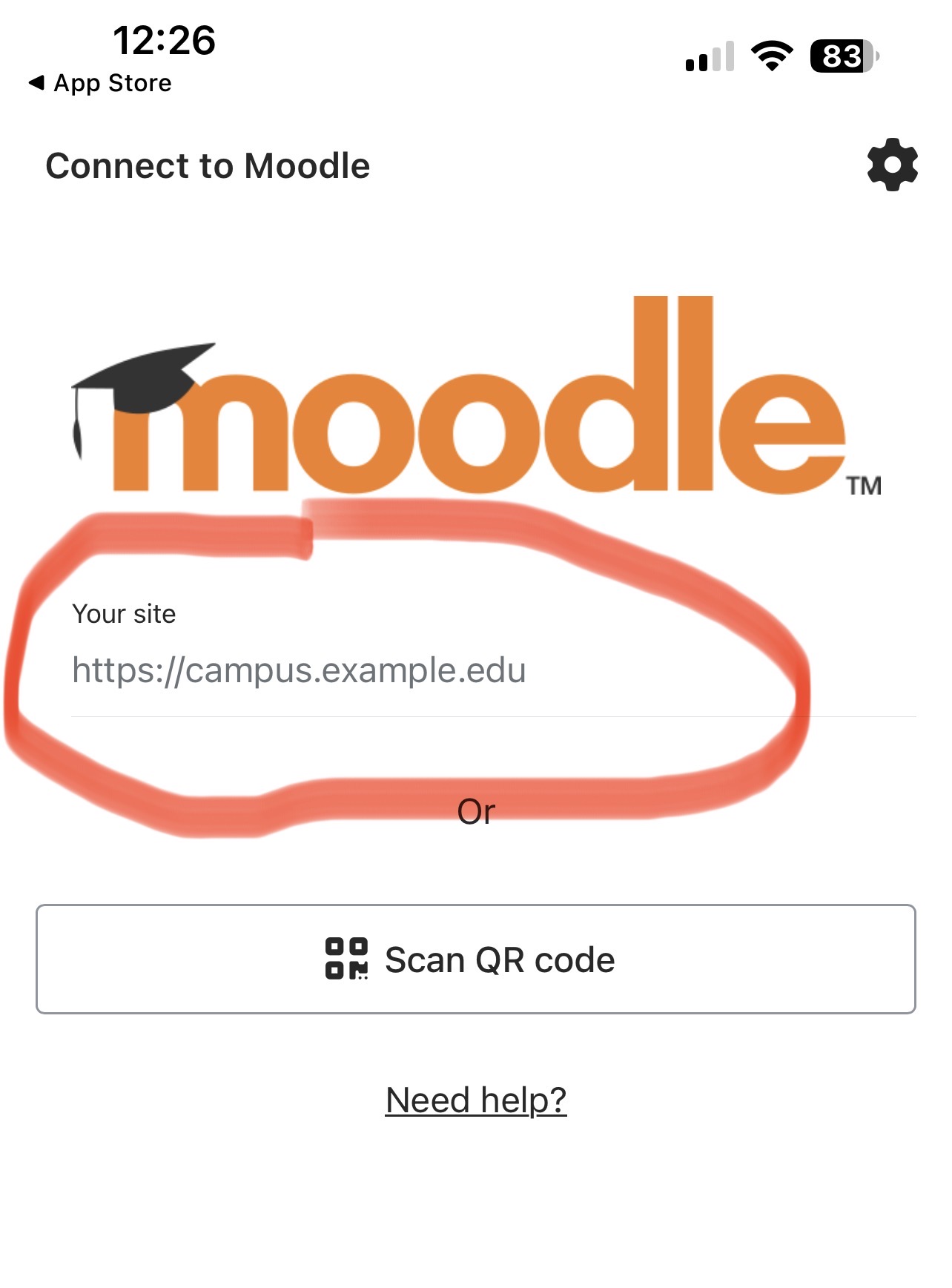
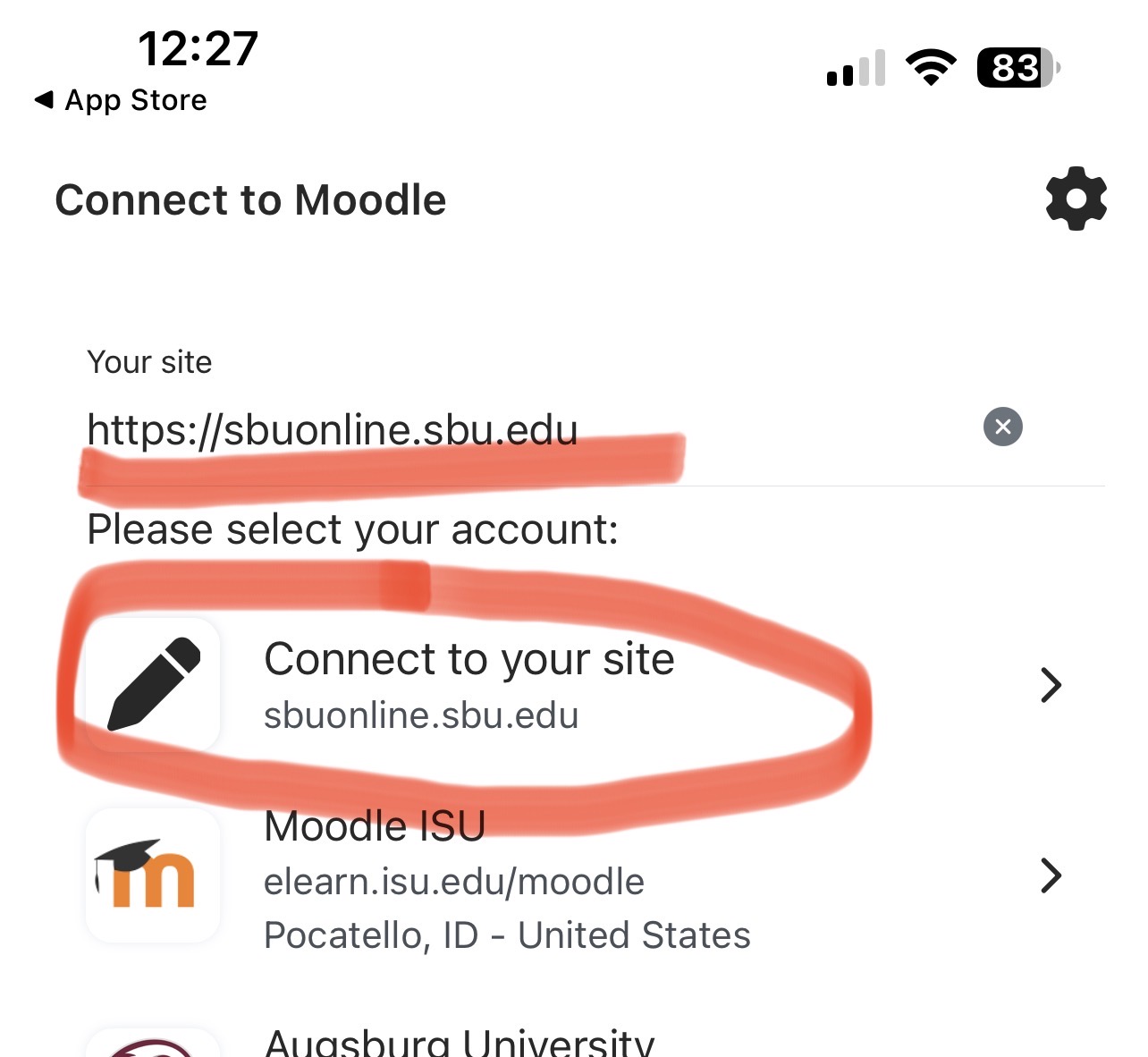
2) You will enter: https://sbuonline.sbu.edu as your site address and then select the "connect to your site" option
3. How to Finish and Log in to the Moodle App
Lastly, you will log in to your Bonaventure Moodle Account within the Moodle App
1) On the login screen choose the Microsoft Button to log in:
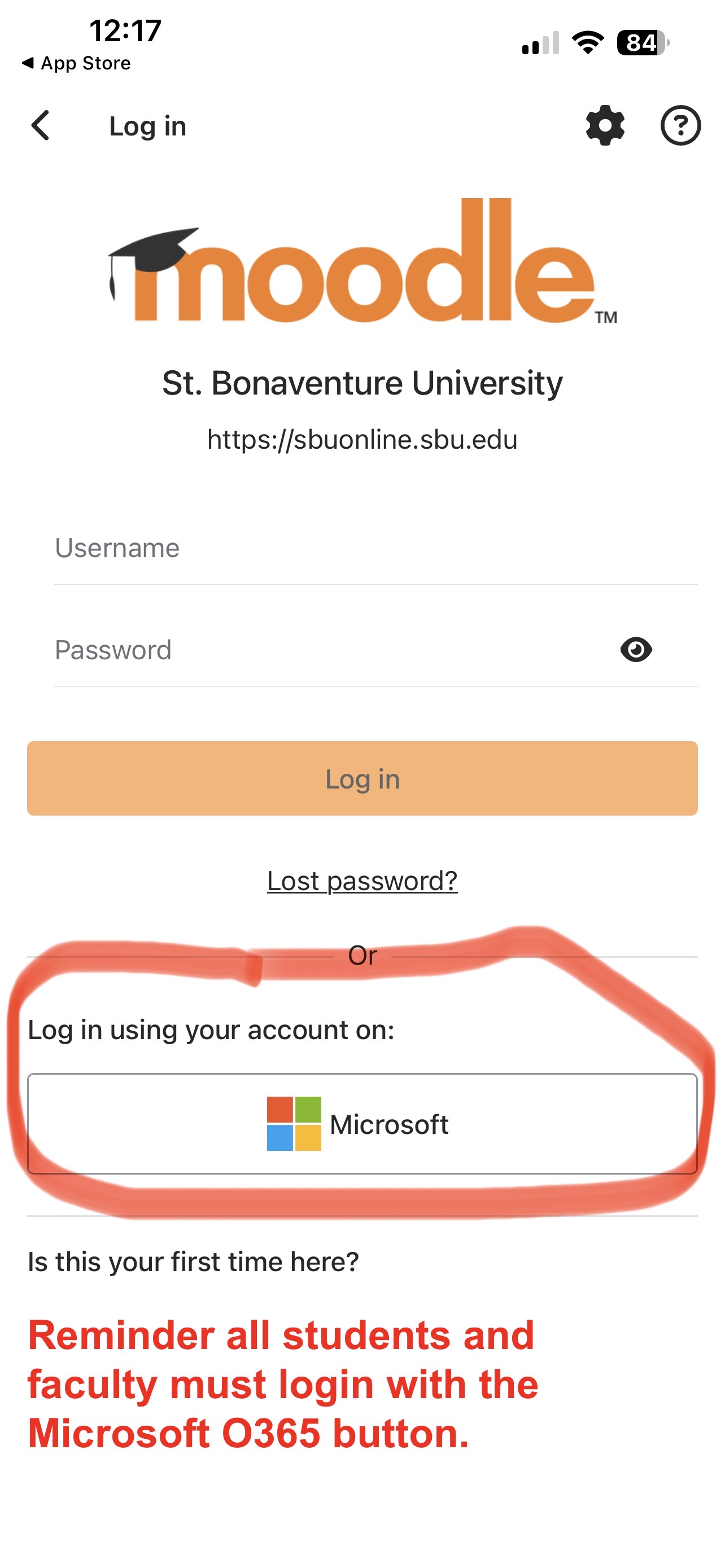
2) Enter your Bonaventure microsoft account login information: Bonaventure username and password
3) Complete the Microsoft verification/MFA step (Authenticator app or text to phone number)
4) You should be logged in and ready to go!